How I Automated Next.js Static Deployment to cPanel with GitHub Actions
A practical guide to automating static Next.js deployment to cPanel using GitHub Actions, FTP, and lftp.
Deploying a website manually works in the beginning, but it can become repetitive very quickly.
Every time I made a small change to my portfolio - whether it was a blog update, metadata improvement, sitemap update, design change, or content adjustment - I had to build the project locally, generate the static output, upload files manually, and make sure everything was placed correctly inside public_html.
That workflow worked, but it was not efficient.
So I automated the full deployment process using GitHub Actions, Next.js static export, FTP, and lftp.
Now, whenever I push changes to GitHub, the website is automatically rebuilt and deployed to cPanel.
The Problem with Manual Deployment
My website is built with Next.js and deployed as a static site on cPanel.
My previous manual workflow looked like this:
- Make changes locally
- Build the project
- Generate the static
outfolder - Zip or upload the files manually
- Open cPanel File Manager or FTP
- Place the files inside
public_html - Test the live website
This was fine for occasional updates, but not practical for regular portfolio, blog, and SEO improvements.
A portfolio website changes often. Sometimes I update a project. Sometimes I improve metadata. Sometimes I add a blog post. Sometimes I adjust sitemap.xml or robots.txt.
Doing this manually every time was slow and error-prone.
The Goal
The goal was simple:
Push code to GitHub and let the deployment happen automatically.
I wanted a workflow where:
- GitHub Actions builds the project
- Next.js generates a fresh static export
- The complete
outfolder is prepared - The contents of
outare uploaded directly topublic_html - The live website updates automatically
This makes the deployment process faster, cleaner, and more reliable.
Understanding the Next.js Static Export
For static deployment, Next.js generates an out folder.
The important thing is this:
public_htmlshould contain the contents of theoutfolder, not theoutfolder itself.
Correct structure:
public_html/index.html
public_html/about/index.html
public_html/blog/index.html
public_html/services/react-native-mobile-app-development/index.html
Wrong structure:
public_html/out/index.html
If the out folder itself is uploaded inside public_html, the website routes may not work correctly.
So the deployment needed to sync the contents of out directly into public_html.
Final Deployment Flow
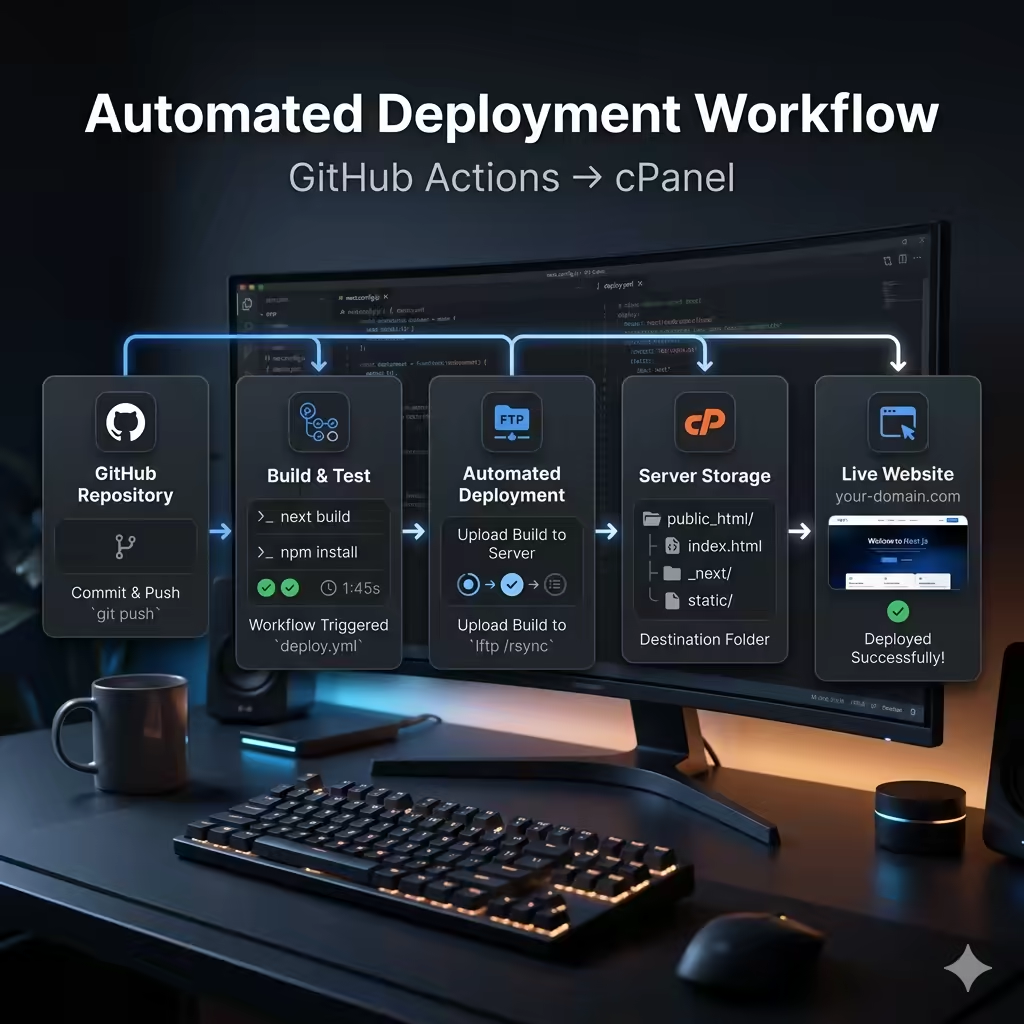
The final automated workflow looks like this:
Code or content update
v
Git push to GitHub
v
GitHub Actions starts
v
Dependencies are installed
v
Next.js builds the static website
v
A fresh out folder is generated
v
lftp syncs the contents of out to public_html
v
Live website updates automatically
This is not only for blog updates.
Every push rebuilds the full static site again. So if I update a blog post, portfolio section, metadata, sitemap, design, or any other page, the same deployment pipeline handles everything.
Why I Used GitHub Actions
GitHub Actions is useful because it connects directly with the repository.
Once the workflow is configured, every push can trigger an automated build and deployment.
In my case, GitHub Actions handles:
- checking out the repository
- installing dependencies
- building the Next.js project
- generating the static output
- deploying the generated files to cPanel
- keeping deployment consistent
This removes the need for manual ZIP uploads or repeated file manager work inside cPanel.
Keeping FTP Credentials Safe
One important rule:
FTP credentials should never be committed to code.
Instead of writing FTP username, password, or host directly inside the workflow file, I stored them in GitHub Actions Secrets.
Example secret names:
FTP_SERVER
FTP_USERNAME
FTP_PASSWORD
This keeps sensitive deployment information outside the codebase.
The workflow can still access these values securely during deployment.
Why I Switched to lftp
Initially, a normal FTP deployment action was not fully reliable for the first large upload.
The first deployment usually includes many files, images, static assets, and generated pages. In some shared hosting environments, simple FTP upload actions can fail, timeout, or reset the connection during larger sync operations.
Using lftp mirror made the deployment more stable because it can sync the generated static output to the target directory more reliably.
The key idea is:
Sync local out folder contents -> remote public_html directory
This made the deployment more repeatable and easier to trust.
Example GitHub Actions Workflow
Here is a simplified example of the final workflow:
name: Deploy Static Next.js Site to cPanel

on:
  push:
    branches:
      - main

  workflow_dispatch:

jobs:
  build-and-deploy:
    runs-on: ubuntu-latest

    steps:
      - name: Checkout repository
        uses: actions/checkout@v4

      - name: Setup Node.js
        uses: actions/setup-node@v4
        with:
          node-version: 20
          cache: npm

      - name: Install dependencies
        run: npm ci

      - name: Build static website
        run: npm run build

      - name: Install lftp
        run: sudo apt-get update && sudo apt-get install -y lftp

      - name: Deploy to cPanel public_html
        run: |
          lftp -u "${{ secrets.FTP_USERNAME }}","${{ secrets.FTP_PASSWORD }}" "${{ secrets.FTP_SERVER }}" <<EOF
          set ftp:passive-mode true
          set ftp:ssl-allow no
          set net:timeout 30
          set net:max-retries 5
          set net:reconnect-interval-base 5
          mirror -R --verbose --parallel=1 --only-newer ./out/ public_html/
          bye
          EOF
This is only a general example. The exact workflow may vary depending on project setup, hosting configuration, FTP server behavior, and cPanel hosting rules.
Important Deployment Detail
The most important part of this setup is the target directory.
The deployment should place files like this:
public_html/index.html
public_html/blog/index.html
public_html/contact/index.html
Not like this:
public_html/out/index.html
That small difference matters a lot.
If the wrong folder structure is deployed, the upload may still succeed, but the domain may not load the correct homepage or routes.
A Note About Clean Sync
In my workflow, I used:
mirror -R --verbose --parallel=1 --only-newer ./out/ public_html/
This uploads new and updated files from the out folder to public_html.
For a stricter clean deployment, lftp also supports --delete, which removes files from the server that no longer exist locally.
Example:
mirror -R --delete --verbose --parallel=1 ./out/ public_html/
However, this should be used carefully.
If public_html contains files that are not generated by Next.js - such as .htaccess, verification files, or hosting-specific files - --delete may remove them.
For safer deployment, I prefer starting with --only-newer, then using --delete only when I am sure the remote directory should exactly match the generated out folder.
What This Improved
After automation, my deployment workflow became much cleaner.
Now I can:
- update website content
- add blog posts
- improve SEO metadata
- update portfolio projects
- push code to GitHub
- let GitHub Actions handle deployment
This saves time and reduces manual mistakes.
It also makes the portfolio easier to maintain as a real production website instead of just a static personal page.
Lessons Learned
Here are the main lessons from this setup:
- Manual deployment works, but it becomes slow when updates are frequent.
- GitHub Actions is useful for automating repetitive deployment workflows.
- cPanel hosting can still support modern automated deployment workflows.
- Next.js static export works well for portfolio and content-based websites.
public_htmlshould contain the contents ofout, not theoutfolder itself.- FTP credentials should always be stored in GitHub Actions Secrets.
lftp mirrorcan be more reliable than basic FTP upload for full static sync.- Clean deployment should be handled carefully when the server contains extra hosting files.
- A good deployment workflow improves maintainability, not only speed.
Final Thoughts
This setup turned my portfolio deployment from a manual process into an automated workflow.
Now every update follows a clean pipeline:
Git push -> GitHub Actions -> Next.js build -> out folder -> cPanel public_html
For a personal portfolio, startup landing page, documentation site, or static business website, this kind of automation can save a lot of time and reduce deployment mistakes.
It is a small DevOps improvement, but it makes the overall product workflow much more professional.
If you are building a portfolio, SaaS landing page, startup MVP, or static Next.js website and still uploading files manually to cPanel, automating deployment with GitHub Actions can be a practical upgrade.
Need help building a React Native app, AI-powered product, full-stack MVP, or automated deployment workflow? Contact Abdul Rafay to discuss your project.